> For the complete documentation index, see [llms.txt](https://docs.ppcstorm.com/llms.txt). Markdown versions of documentation pages are available by appending `.md` to page URLs; this page is available as [Markdown](https://docs.ppcstorm.com/analytics-and-reporting/keyword-tracker-add-on.md).
# Keyword Tracker (add on)
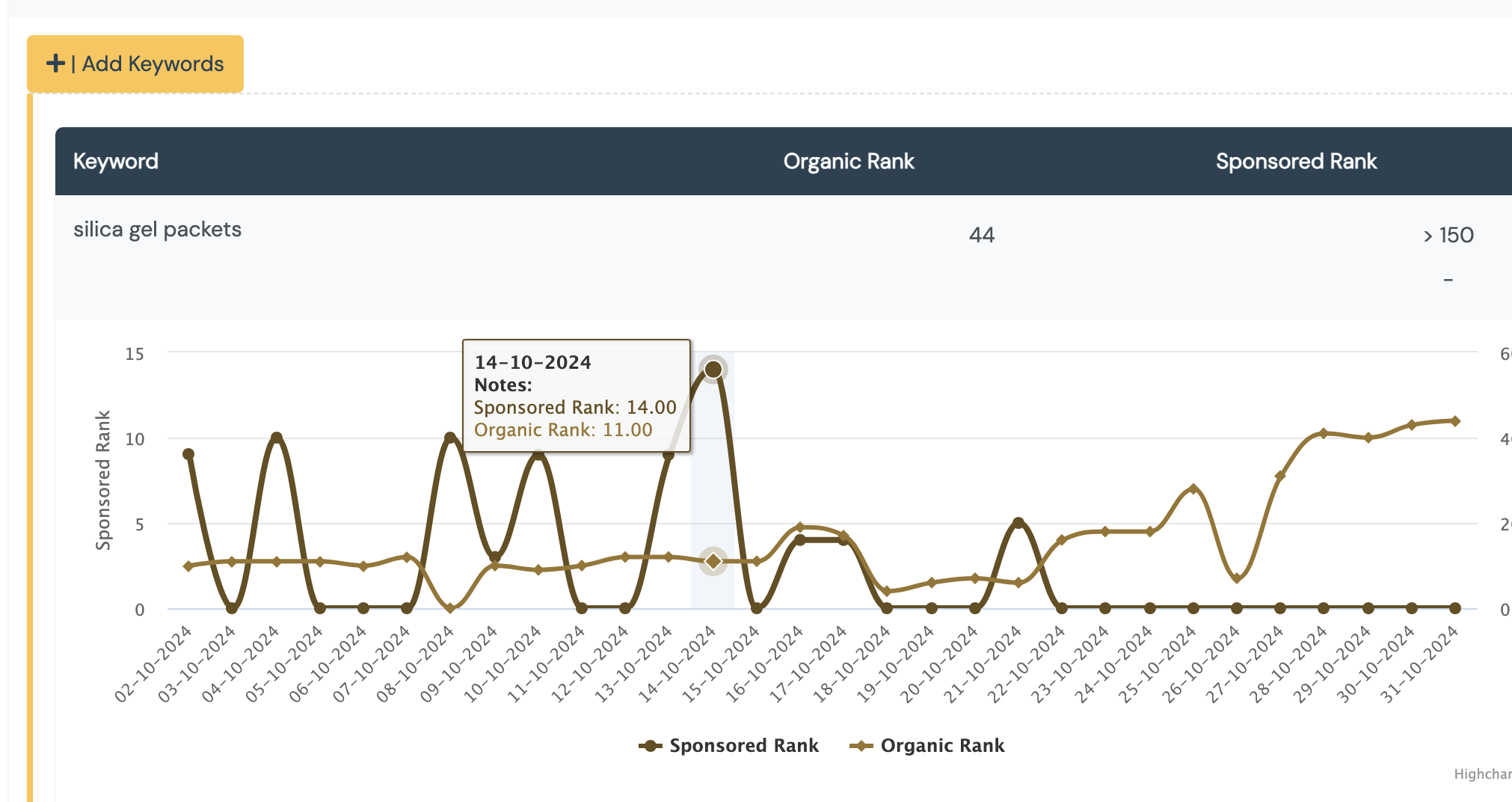
Get daily ranking updates for both Organic and Sponsored Products positions, for selected ASINs and Keywords.
In this dashboard, you are able to set up ASINs and Keywords to track rankings for, on a daily basis.\
\
Use this to keep an eye on your performance for important keywords for your own ASINs, or even monitor COMPETITOR ASINs performance! \
\
Steps to track rankings for an ASIN;
1. Ensure you have loaded a keyword package to your account (see add-ons in the settings menu of your account)
2. Go to the keyword tracking dashboard
3. Click the 'add asin' button
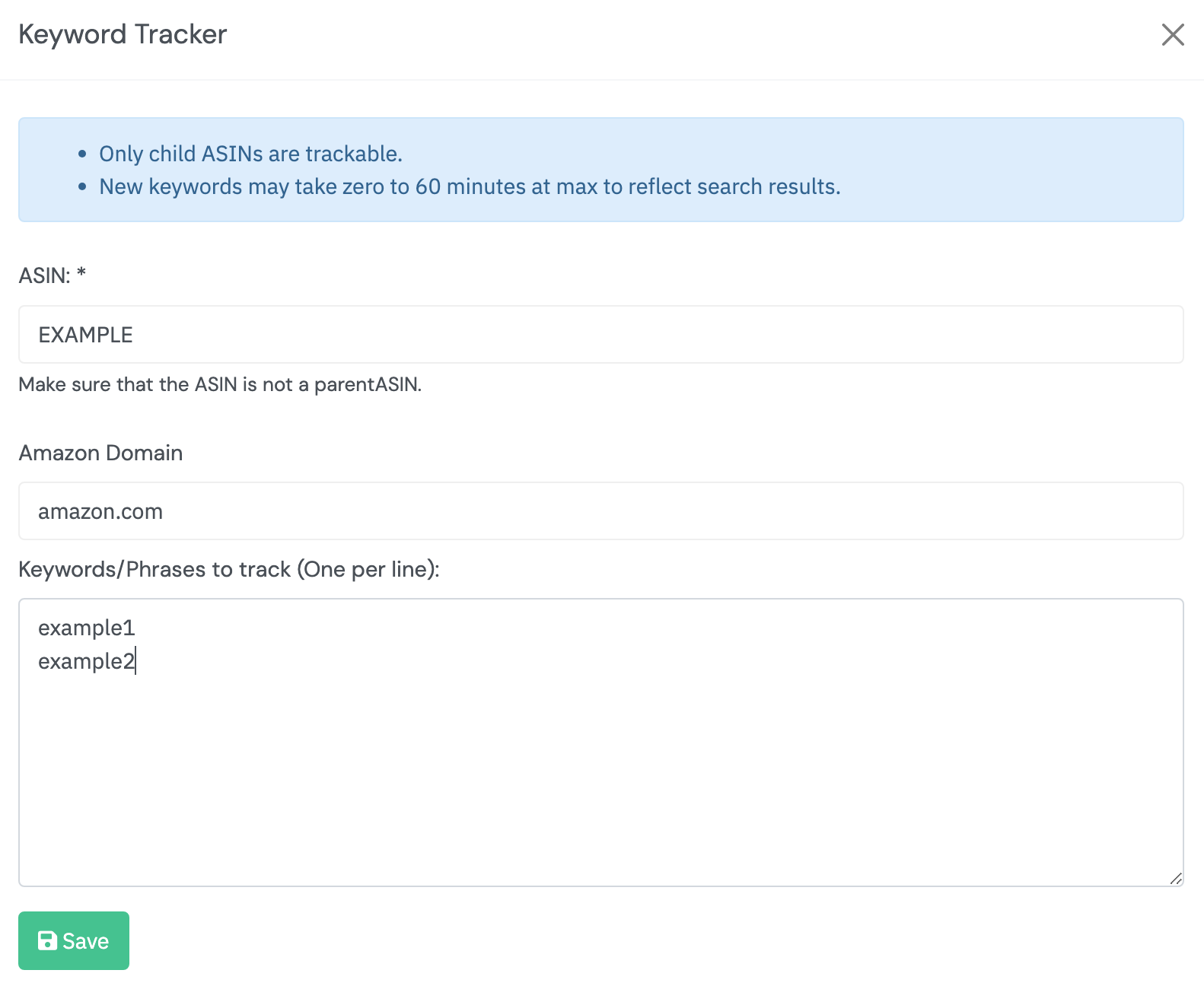
4. Input the ASIN, marketplace, and keyword information (one keyword to track per line) -- see screenshot below
5. Click save!
It can take up to 60 minutes from an initial set up to start seeing data for the keywords you have selected.
Pricing:
see the add-ons section within your PPC Storm account for pricing.