# Welcome to PPC Storm

{% hint style="info" %}
**Tip:** Find additional support options by joining our facebook group [HERE](https://www.facebook.com/groups/amazonadvertisingsupport), and subscribing to our YouTube Channel [HERE](https://www.youtube.com/@PPCStorm?sub_confirmation=1)!
{% endhint %}

## What is PPC Storm?

Welcome! We're so glad you're here.\
\
PPC Storm is an Amazon Advertising Management tool that helps you improve your Amazon ads performance and spend less time doing it!

With PPC Storm, you get access to all of your Amazon ads data automatically, assess trends and performance at every level, and make the desired changes either through intuitive bulk editing- or setting up your fully customizable automation engines to take the heavy lifting out of efficient PPC management.&#x20;

## Quick links

{% content-ref url="/pages/lwlRMWk8WZLh5SY1Qgyc" %}
[Common Questions](/getting-started/common-questions)
{% endcontent-ref %}

## Get Started

We've put together some helpful guides for you to get setup with our product quickly and easily.

{% content-ref url="/pages/gXBFnCKqpQkq0tBGFiLP" %}
[First 24 Hours](/getting-started/first-24-hours)
{% endcontent-ref %}

{% content-ref url="/pages/vuoFdaXMbVHrLbT9J2ru" %}
[Invite Your Team](/getting-started/invite-your-team)
{% endcontent-ref %}


# First 24 Hours

{% hint style="warning" %}
**Tip:** Make sure to get the Amazon advertising account connected to PPC Storm as soon as possible to get the data migration process underway. This means you can start working with the data as soon as possible!
{% endhint %}

### STEP 1: Connect Your Advertising Account

### STEP 2: Connect Your 'Seller' Account API (for additional seller-only metrics)

### STEP 3: Join Additional Support Areas

* [Facebook Group](https://www.facebook.com/groups/amazonadvertisingsupport)
* [YouTube Channel ](https://www.youtube.com/@PPCStorm?sub_confirmation=1)

### STEP 4: Add Your Team

## Permission levels

There are 3 types of permission levels in the product.

<table><thead><tr><th width="180">Role</th><th>Capabilities</th></tr></thead><tbody><tr><td>Administrator</td><td>Has all admin privileges (only account owner has this)</td></tr><tr><td>Guest</td><td>Can make edits on assigned accounts</td></tr><tr><td>Viewer</td><td>Can only view data, no editing ability</td></tr></tbody></table>


# Invite Your Team

{% embed url="<https://www.floik.com/flos/xfyw/nuzv/2849af46.html?show-author=false&show-toc=true>" %}


# Common Questions

Expand the questions below to see the answers.

<details>

<summary>Is my data secure with PPC Storm?</summary>

Absolutely. We prioritize data security and use state-of-the-art encryption and security measures to ensure your data remains confidential and protected.

</details>

<details>

<summary>How long does it take for a new account to load data in to PPC Storm?</summary>

Generally it takes up to 24 hours to complete the data import, we can go back up to 6 months to retrieve history from your advertising performance data. This data is stored for you for the lifetime of the active account.

</details>

<details>

<summary>What kind of reports can I generate using PPC Storm?</summary>

There is a comprehensive report available within the USER DASHBOARD that you can customize to your needs. You can also generate a variety of reports including keyword performance, search term reports, ad group performance, campaign performance, product performance, and more. These reports can be exported for further analysis.

</details>

<details>

<summary>How does PPC Storm handle negative keywords?</summary>

PPC Storm provides a feature to identify non-performing keywords. You can easily add these as negative keywords to prevent unwanted clicks and save on ad spend. We also have the automation rule option 'ZAPPER' which can automatially negate poorly performing search terms on your behalf!

</details>

<details>

<summary>Is there a way to set automatic bid adjustments in PPC Storm?</summary>

Yes, our software offers automated bidding strategies. You can set rules based on desired ACOS and customized data time-frames, and the software will adjust bids accordingly.

</details>

<details>

<summary>How frequently does the software update my campaign data?</summary>

PPC Storm refreshes all data every 24 hours. However any changes made within the platform are pushed through upon changes (single change happens immediately, bulk changes take a few minutes to go through).&#x20;

</details>

<details>

<summary>Can I manage multiple Amazon accounts with PPC Storm?</summary>

Yes, PPC Storm supports multi-account management. You can link multiple Seller Central accounts and manage all your brands from a single account.&#x20;

</details>

<details>

<summary>How do I link my Amazon Seller Central account with PPC Storm?</summary>

Go to the 'Settings' section after logging in, click on 'connections', then  'Connect Amazon Ads', and follow the on-screen instructions. Ensure you have the necessary permissions in Seller Central.

</details>

<details>

<summary>How does PPC Storm help in managing my Amazon PPC campaigns?</summary>

PPC Storm provides a suite of tools to help you create campaigns, set bids, track performance, and optimize your campaigns for maximum ROI.

</details>

<details>

<summary>What is "search term impression share" and how can I track it in PPC Storm?</summary>

Search Term Impression Share represents the percentage of impressions your ads received compared to the total possible impressions they could have gotten. This is available in a report from the Amazon ads console to manually download (not via the API yet!). In PPC Storm, you can add this report to the rest of your synced account data to enhance your decision making abilities, and take advantage of impression share opportunities.

</details>

<details>

<summary>Can I manage Sponsored Products, Sponsored Brands, and Sponsored Display ads all in PPC Storm?</summary>

Yes, PPC Storm offers a comprehensive platform that lets you manage and optimize all Amazon ad formats in one centralized location.

</details>

<details>

<summary>How does PPC Storm's pricing work? Is it based on ad spend or number of campaigns?</summary>

PPC Storm's pricing is based on flat rate per marketplace. For detailed pricing tiers (including agencies) and what's included, please visit our pricing page.

</details>

<details>

<summary>What Marketplaces are supported within PPC Storm?</summary>

</details>

<details>

<summary>Are there any training materials or support resources available for new users of PPC Storm?</summary>

Yes! This knowledge base is a great resource, alongside our facebook group, YouTube Channel and support chat.

</details>

<details>

<summary>Does PPC Storm have a public roadmap?</summary>

Yes! Please see the public roadmap [HERE](https://roadmap.ppcstorm.com/).

</details>


# Reporting

Reporting in PPC Storm is dynamic - meaning you are able to export any of the data you would like, to manipulate in external platforms however you wish (google data studio, excel, etc).\
\
However there's also the option to download an enhanced version of the 'USER DASHBOARD' as a PDF. This is great for reporting regular progress to your management team, or clients. \
\
To access this version, load the USER DASHBOARD, and select the 'download' icon toward the top right hand side of the screen.

{% hint style="info" %}
Ensure you set the date range you would like to report on BEFORE clicking this button, as the report will load the data from this pre-selected range.
{% endhint %}

<figure><img src="https://2515609120-files.gitbook.io/~/files/v0/b/gitbook-x-prod.appspot.com/o/spaces%2F4VOmyExdvCJMhEDPaADI%2Fuploads%2FtggqQfrJgfvGF5vqx1ku%2Fimage.png?alt=media&amp;token=d7c872fc-0e92-4da0-a6f9-fc86061acfe1" alt=""><figcaption></figcaption></figure>

Once the report has loaded, you will find a more comprehensive progress report than you see on the main USER DASHBOARD.&#x20;

You can now go ahead and click the DOWNLOAD button in the top right hand side of the page.

<figure><img src="https://2515609120-files.gitbook.io/~/files/v0/b/gitbook-x-prod.appspot.com/o/spaces%2F4VOmyExdvCJMhEDPaADI%2Fuploads%2F7s6VL2lk7nHjAr8EksTd%2Fimage.png?alt=media&amp;token=60140b90-6691-45bf-91bb-d4ca236c0ceb" alt=""><figcaption></figcaption></figure>

Your account data will be safely and securely stored for you for the lifetime of your active PPC Storm account, when means that you are able to track progress through the data going back YEARS (once you have accumulated the data).

{% hint style="warning" %}
Data will be deleted after 30 days, once unsubscribed.
{% endhint %}


# Filters

We have created our data tables in a way that allows for maximum customization for you to manipulate the data in as many ways as you want!&#x20;

Layer as many different filters a you would like, at the same time, to really dig down in to the data. Below shows an example of utilizing 5 different data filters to show only search terms we would want to consider for potential mining.

<figure><img src="https://2515609120-files.gitbook.io/~/files/v0/b/gitbook-x-prod.appspot.com/o/spaces%2F4VOmyExdvCJMhEDPaADI%2Fuploads%2FVndYVHAbj8AEX7d7NJaU%2Fimage.png?alt=media&amp;token=62c102fd-6e8a-41e0-b72d-ab2a892d48d0" alt=""><figcaption></figcaption></figure>

If you have a filter (or set of filters) you use often, you can SAVE the filter and give it a custom name. This is great to save some time when optimizing your accounts, and also keeping consistency - using the same filters each time you are optimizing helps you keep consistent and predictable growth.

<figure><img src="https://2515609120-files.gitbook.io/~/files/v0/b/gitbook-x-prod.appspot.com/o/spaces%2F4VOmyExdvCJMhEDPaADI%2Fuploads%2FvKlGc59rt0NevzesgchR%2Fimage.png?alt=media&amp;token=04720d06-dd84-49bf-9f30-282b72c1904a" alt=""><figcaption></figcaption></figure>

To load a previously saved filter, you can click on the blue 'LOAD' button, then activate the filter with the green 'activate' button to load the filter to the table.<br>

<figure><img src="https://2515609120-files.gitbook.io/~/files/v0/b/gitbook-x-prod.appspot.com/o/spaces%2F4VOmyExdvCJMhEDPaADI%2Fuploads%2Fsf4Whw719MntYaACvetl%2Fimage.png?alt=media&amp;token=baa7f87c-2697-4aa0-b885-b2e37bea3031" alt=""><figcaption></figcaption></figure>

{% hint style="info" %}
Remember to give your filters a name that suits the purpose of the filter. The Criteria of the filter will show directly under the name you give it.
{% endhint %}


# Trends

Trends show you the '% change' up or down, on all of the data tables we have within the platform. \ <br>

<figure><img src="https://2515609120-files.gitbook.io/~/files/v0/b/gitbook-x-prod.appspot.com/o/spaces%2F4VOmyExdvCJMhEDPaADI%2Fuploads%2FTQPzSCc5CVSgIYr6tuv0%2Fimage.png?alt=media&amp;token=93841a19-335f-49f5-a539-f90dce47af1c" alt=""><figcaption></figcaption></figure>

The comparisons will always be made ***against the same period you are measuring***.\
\
For example; if you have 'last 30 days' as the date ange set on the picker - you will be comparing the most recent 30 days, against the 30 days prior to that.\
\
If you are selecting 'last quarter', you will be comparing against the quarter prior to that - etc.\
\
If you would prefer to switch this feature off, you can do so by checking/unchecking the box labelled 'show trends' available on most of the screens with data tables.\ <br>

<figure><img src="https://2515609120-files.gitbook.io/~/files/v0/b/gitbook-x-prod.appspot.com/o/spaces%2F4VOmyExdvCJMhEDPaADI%2Fuploads%2FSVBnqdd6AkMTYLNqnoAN%2Fimage.png?alt=media&amp;token=0768930d-a9d0-4175-bad3-c0ba25a8dffe" alt=""><figcaption></figcaption></figure>


# Main Dashboard

We have a few different types of dashboards in PPC Storm! All with their own unique use-cases.

1. User Dashboard
2. Ad Type Dashboard
3. Product Performance Dashboard
4. All Marketplaces Dashboard

**USER DASHBOARD**\
\
This is your main 'hub' for your day to day monitoring and activity. This will show you an overview from various areas of your Amazon account. Start here when you are analyzing your performance. \
\
To navigate to this area you can click on the main menu item named 'USER DASHBOARD'\
\ <img src="https://2515609120-files.gitbook.io/~/files/v0/b/gitbook-x-prod.appspot.com/o/spaces%2F4VOmyExdvCJMhEDPaADI%2Fuploads%2FljxFe8QYC4wUQE6ooinK%2Fimage.png?alt=media&amp;token=278be7bc-0bfd-4e82-9316-85916859fe28" alt="" data-size="original">\
\
\
\
**AD TYPE DASHBOARD**\
\
These are the areas you can go to when you need to break down your account performance based on the different advertising types you have available in your account. These are broken down as individual dashboards for Sponsored Products, Sponsored Brands, and Sponsored Display. \
\
To navigate to these areas you first click the dropdown menu item for the ad type, and then 'dashboard'. Here you can see a day-by-day breakdown, as well as an editable graph for you to make comparisons for your main metrics!&#x20;

<figure><img src="https://2515609120-files.gitbook.io/~/files/v0/b/gitbook-x-prod.appspot.com/o/spaces%2F4VOmyExdvCJMhEDPaADI%2Fuploads%2F9BKjoU8wvopoA4oeBpC0%2Fimage.png?alt=media&amp;token=cb296ffd-9c49-446e-8544-4f67e9aa1f7b" alt="" width="284"><figcaption></figcaption></figure>

<figure><img src="https://2515609120-files.gitbook.io/~/files/v0/b/gitbook-x-prod.appspot.com/o/spaces%2F4VOmyExdvCJMhEDPaADI%2Fuploads%2FZfMJXkft0rEmmXjWGth2%2Fimage.png?alt=media&amp;token=a6134a7a-2d2c-432b-941b-cabc2d030fc9" alt=""><figcaption></figcaption></figure>

\
**PRODUCT PERFORMANCE DASHBOARD**\
\
This is where you can see your ASIN level breakdown of performance across your account. You can utilize filters, sort by highest/lowest, and also see trends for comparisons against the previous period!\
\
To navigate to this area, click on the 'PRODUCTS' main menu item.\ <br>

<figure><img src="https://2515609120-files.gitbook.io/~/files/v0/b/gitbook-x-prod.appspot.com/o/spaces%2F4VOmyExdvCJMhEDPaADI%2Fuploads%2FY7Py9CiaJyZZBEeeDTez%2Fimage.png?alt=media&amp;token=21450042-be24-4730-92b5-5e5331db4ab8" alt=""><figcaption></figcaption></figure>

\
**ALL MARKETPLACES DASHBOARD**

This is where you can see your marketplace level breakdown of performance across all of your accounts/marketplaces. You can utilize filters, sort by highest/lowest, and also see trends for comparisons against the previous period!

To navigate to this area, click on the 'ALL MARKETPLACES' main menu item.

<figure><img src="https://2515609120-files.gitbook.io/~/files/v0/b/gitbook-x-prod.appspot.com/o/spaces%2F4VOmyExdvCJMhEDPaADI%2Fuploads%2F1MT1S6aEyEmu22NU6bvt%2Fimage.png?alt=media&amp;token=bd3e8a92-0ef7-4225-90dc-d0c1c08b1478" alt=""><figcaption></figcaption></figure>


# Time-Series Dashboard

Your data visualized in to time-periods for analysis. Use this dashboard to assess which time periods perform best for your business, and make adjustments based on this.

<figure><img src="https://2515609120-files.gitbook.io/~/files/v0/b/gitbook-x-prod.appspot.com/o/spaces%2F4VOmyExdvCJMhEDPaADI%2Fuploads%2FbpOczHD61gy5MrYXhb9U%2FScreen%20Shot%202024-10-27%20at%201.11.30%20PM.png?alt=media&amp;token=d5bfaf8e-fe07-4d7e-b1a6-b5c271395914" alt=""><figcaption><p>Day of Week performance YEAR TO DATE</p></figcaption></figure>

Above, you can see the 'day of week' breakdown of performance. Within the red highlighted area, you are able to select & de-select KPIs to measure against eachother. In the example above we have left active: Sales, Spend, and CR (ads conversion rate).

<figure><img src="https://2515609120-files.gitbook.io/~/files/v0/b/gitbook-x-prod.appspot.com/o/spaces%2F4VOmyExdvCJMhEDPaADI%2Fuploads%2FyMJUDpa5RJHjoshdm3L9%2FScreen%20Shot%202024-10-27%20at%201.12.59%20PM.png?alt=media&amp;token=013035f0-19e6-48fa-9b11-292916823009" alt=""><figcaption><p>Table-view of selected date-range</p></figcaption></figure>

Using the table view you are able to see the metrics for all of the KPIs within the selected time-frame, also broken down by day of the week. \
\
This allows you to spot outliers and potentially make decisions to improve yourr overall account performance. In the example above we can see that Fridays are generally the worst performing day of the week.\
\
**IMPORTANT: This data is incredibly valuable when you have also connected your SP-API (seller account connection) as well as your standard ads connection. This will give you access to 3x more things in this section: Total sales, % of sales from ads, and TACOS. In the example above this is NOT connected.**&#x20;

go to: <https://app.ppcstorm.com/ads/enrollment> when logged in to make sure you have both ads, and seller connection activated for your accounts to maximize available data.


# Search Term Aggregation

Know how a search term is performing across your whole account!

Ever wanted to analyze the performance of a search term, even when there are potential duplication across the account? E.g. Your brand name?

Search Term Aggregation does exactly this! Measure the performance of the Search Term across the entire account, as well as the trends/changes from previous periods.

For more information on how to use this feature see the guide below;

{% embed url="<https://www.floik.com/flos/xfyw/xnc7/79929516.html?show-author=false>" %}


# Marketplaces Dashboard

Use this dashboard for an overview of all important metrics, for any of the accounts/marketplaces you have connected with PPC Storm.

Assess trends, utilize filters, sort the table by KPI, or search for a specific client in the search bar!\
\
TIP: connect the additional SELLER CONNECTION for each marketplace in the connections area to get additional metrics available such as TOTAL SALES, TACOS, Ads sales %.

<figure><img src="https://2515609120-files.gitbook.io/~/files/v0/b/gitbook-x-prod.appspot.com/o/spaces%2F4VOmyExdvCJMhEDPaADI%2Fuploads%2F8hnmVPKajumqJzQYn3et%2FScreen%20Shot%202024-10-31%20at%2011.28.36%20AM.png?alt=media&amp;token=4a7ab5ad-b990-4c36-acb7-49a84babebf0" alt=""><figcaption></figcaption></figure>


# Goal Setting & Tracking

Use this feature to set time-specific goals for different metrics across your PPC Storm account.

V1: Goal setting at the marketplaces level.\
\
You are able to set goals for different KPI's at the marketplace/account level - this can be set across different time-frames depending on your own workflow. \
\
Once set, the color-coded blocks will show depending on the progress towards the goal;\
\
RED = <75% of goal *(or 125%+ of metrics where the goal is to be below target)*\
\
Yellow = 75-99% of goal *(or 100-125% of metrics where the goal is to be below target)*\
\
Green = 100+ % of goal *(or <100% of metric where the goal is to be melow target)*\
\
\
\
\------

IMPORTANT NOTE: The goals are set on a RECURRING PERIOD. for example you are setting a goal to achieve across a rolling '30 day' period - not a specific month of the year. You can set goals for multiple time-frames if you need to; e.g. a goal for 7 days, and a goal for 30 days.\
\
Open up the graph icon next to a KPI you have set a goal for, and you'll see the daily trend line required to hit the goal! \
\
\
The huge benefit of this feature is to be able to track and assess goal progress visually, and be able to make changes far earlier to help you stay on track if required (VS waiting until the end of the month, and realizing how far away from the goal progress you are!).

See Screenshots below:

<div><figure><img src="https://2515609120-files.gitbook.io/~/files/v0/b/gitbook-x-prod.appspot.com/o/spaces%2F4VOmyExdvCJMhEDPaADI%2Fuploads%2FQjqH4qd7f9wpv6WnSr2u%2FScreen%20Shot%202024-10-31%20at%2011.23.05%20AM.png?alt=media&amp;token=0267814b-7e4e-408c-8128-1eb9d7bb2053" alt=""><figcaption></figcaption></figure> <figure><img src="https://2515609120-files.gitbook.io/~/files/v0/b/gitbook-x-prod.appspot.com/o/spaces%2F4VOmyExdvCJMhEDPaADI%2Fuploads%2FtxUOWiQTvIyguDarsRPO%2FScreen%20Shot%202024-10-31%20at%2011.24.04%20AM.png?alt=media&amp;token=bdae3c84-c6ea-45f9-a19c-b6e3bde69147" alt=""><figcaption></figcaption></figure></div>

How to add goals:\
\
1\. Go to the marketplaces dashboard\
2\. Ensure the 'goals' function is enabled within the settings COG in the top-right of the table\
3\. Click the TROPHY icon next to the account name\
4\. Select the KPI, and time-frame of the goal you would like to set\
5\. Add a goal metric\
6\. Save


# Keyword Tracker (add on)

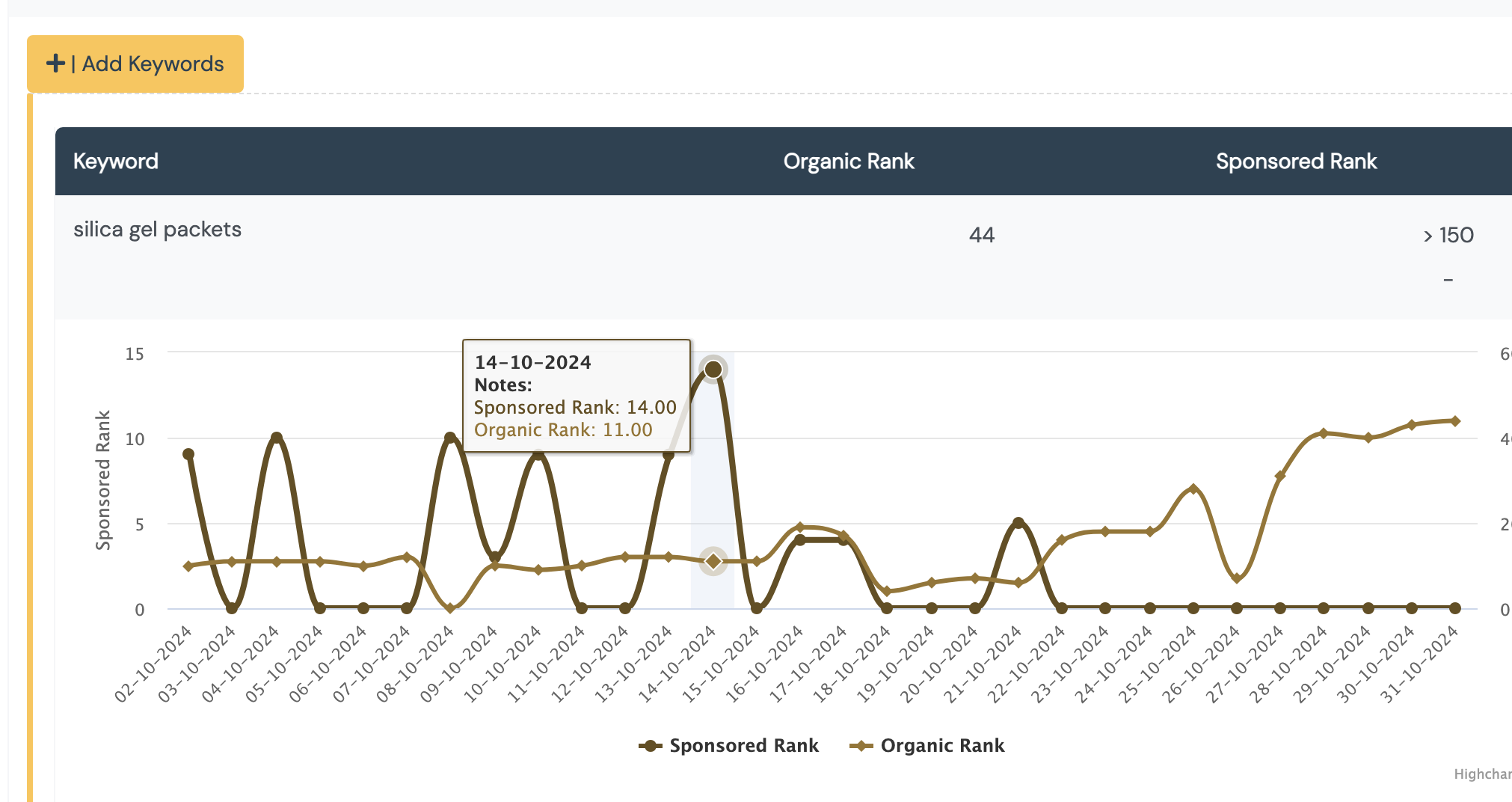
Get daily ranking updates for both Organic and Sponsored Products positions, for selected ASINs and Keywords.

In this dashboard, you are able to set up ASINs and Keywords to track rankings for, on a daily basis.\
\
Use this to keep an eye on your performance for important keywords for your own ASINs, or even monitor COMPETITOR ASINs performance! \
\
Steps to track rankings for an ASIN;

1. Ensure you have loaded a keyword package to your account (see add-ons in the settings menu of your account)
2. Go to the keyword tracking dashboard
3. Click the 'add asin' button
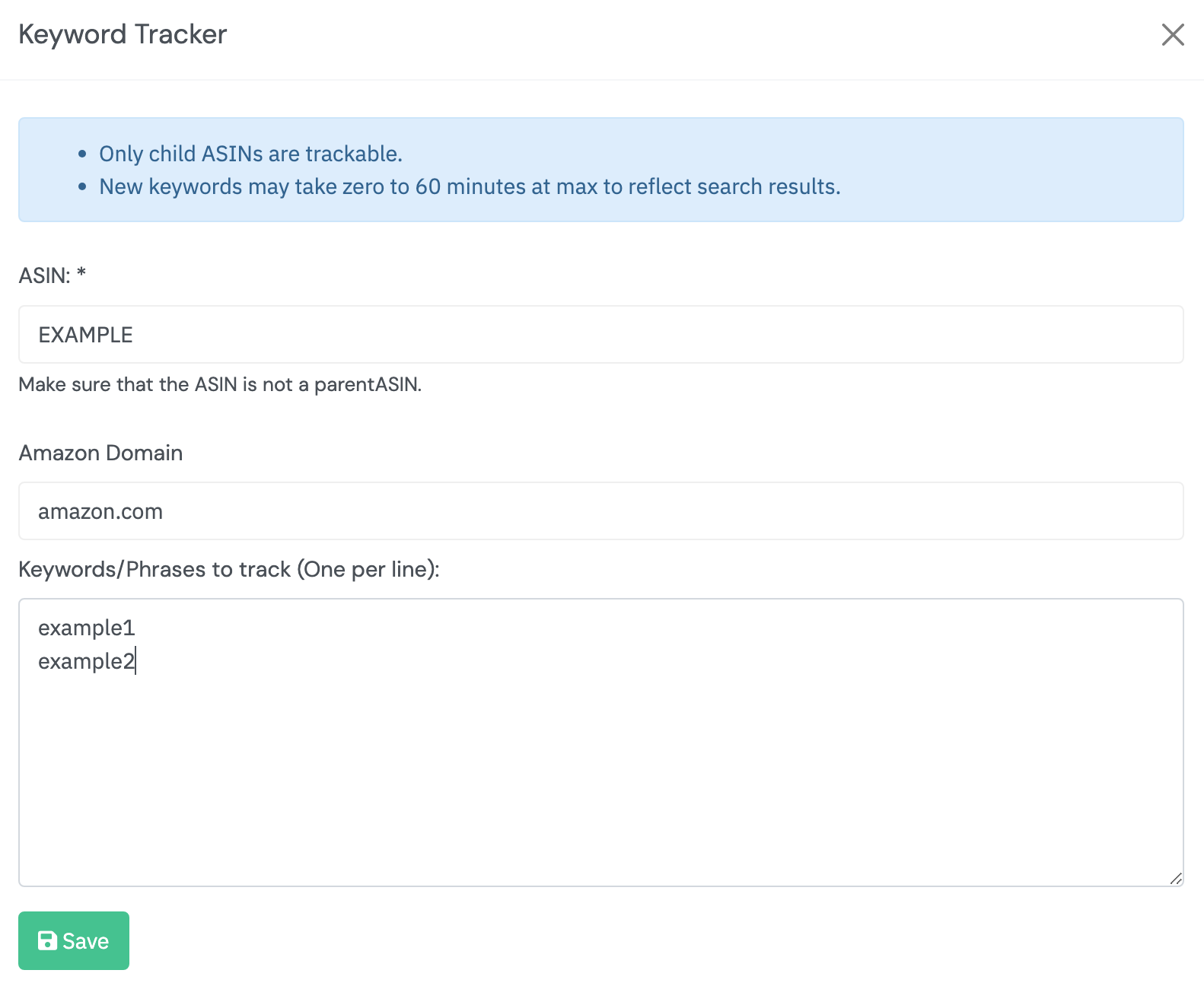
4. Input the ASIN, marketplace, and keyword information (one keyword to track per line) -- see screenshot below
5. Click save!

It can take up to 60 minutes from an initial set up to start seeing data for the keywords you have selected.&#x20;

<figure><img src="https://2515609120-files.gitbook.io/~/files/v0/b/gitbook-x-prod.appspot.com/o/spaces%2F4VOmyExdvCJMhEDPaADI%2Fuploads%2Fkd5RuOwaO4KUkdZlfZpg%2FScreen%20Shot%202024-10-31%20at%2011.37.42%20AM.png?alt=media&amp;token=057b5cca-513e-4633-9f5e-70d67d3fee72" alt=""><figcaption></figcaption></figure>

<figure><img src="https://2515609120-files.gitbook.io/~/files/v0/b/gitbook-x-prod.appspot.com/o/spaces%2F4VOmyExdvCJMhEDPaADI%2Fuploads%2FXd7qWMFdHuMVLpfMLFBv%2FScreen%20Shot%202024-10-31%20at%2011.42.30%20AM.png?alt=media&amp;token=77a222be-f41b-468e-81e3-57a209ecaa89" alt=""><figcaption></figcaption></figure>

Pricing:&#x20;

see the add-ons section within your PPC Storm account for pricing.


# Multi Account/Marketplace Management

There are 2 main areas to familiarize yourself with, to manage multiple marketplaces or accounts within you main PPC Storm account; 1. Marketplace Switcher, and 2. All Marketplaces Dashboard.

To use the marketplace switcher to seamlessly move between to a different marketplace, or another account that is connected - click the marketplace name in the top right of the screen (to the left of your user name).

<figure><img src="https://2515609120-files.gitbook.io/~/files/v0/b/gitbook-x-prod.appspot.com/o/spaces%2F4VOmyExdvCJMhEDPaADI%2Fuploads%2FQqA1sLwlfbvzSW2wqUpC%2Fimage.png?alt=media&amp;token=20972f15-fda6-4331-8392-d07ade1e6125" alt=""><figcaption></figcaption></figure>

Next, select the account you'd like to switch to.

{% hint style="info" %}
You can use the search bar to find the account quicker if needed!
{% endhint %}

<figure><img src="https://2515609120-files.gitbook.io/~/files/v0/b/gitbook-x-prod.appspot.com/o/spaces%2F4VOmyExdvCJMhEDPaADI%2Fuploads%2FN1oWrfomw2ONgjtAnzRS%2Fimage.png?alt=media&amp;token=eeb27020-f53e-464e-9e31-928f465685a4" alt=""><figcaption></figcaption></figure>

BOOM! You're in the new marketplace!

The other area is the 'All marketplaces dashboard' that is explained in the [DASHBOARDS](/analytics-and-reporting/main-dashboard) page. This will help you keep a birds-eye overview of all marketplaces connected to your account from one screen.


# Manual Bid Editing (Bulk)

{% embed url="<https://www.floik.com/flos/xfyw/f3qe/ec3f380e.html?show-author=false>" %}


# Bidding by Target ACOS (Bulk)

{% embed url="<https://www.floik.com/flos/xfyw/i7te/35804a37.html?show-author=false>" %}


# Campaign Scheduling

Campaign scheduling allows you to automatically pause and re-enable your campaigns at certain times of the day/week.

This gives you more control of when your budgets are spent, meaning you can choose to avoid being live in certain parts of the day/week - and allow your daily budget to last longer!

To implement campaign scheduling, head over to the 'campaigns' menu in any of the ad types.\
\
Then select 1 or more campaigns with the checkboxes on the left, and click the 'actions' button at the top of your screen.\ <br>

<figure><img src="https://2515609120-files.gitbook.io/~/files/v0/b/gitbook-x-prod.appspot.com/o/spaces%2F4VOmyExdvCJMhEDPaADI%2Fuploads%2FCRRZgeLx7EMszeDkBbB5%2FScheduling%20dropdown%20menu.png?alt=media&amp;token=3a99bbed-323b-4fcb-af59-1e96c964fdc1" alt=""><figcaption></figcaption></figure>

Next, you'll be able to build out your custom schedule for those campaigns.&#x20;

The time frames you set, are when the selected campaigns will be PAUSED (campaigns automatically re-enabled at the end of the timeframe set).

<figure><img src="https://2515609120-files.gitbook.io/~/files/v0/b/gitbook-x-prod.appspot.com/o/spaces%2F4VOmyExdvCJMhEDPaADI%2Fuploads%2Ffc8eOtvgdMwS84phnuPh%2FScheduling%20example.png?alt=media&amp;token=85a1c305-00ed-472c-ba82-cf7280883cec" alt=""><figcaption></figcaption></figure>

Add a multiple rules within each day if you want to be paused multiple times throughout the day.

Click 'apply to all days' if you want to set the same rules for each day of the week.

Delete the rule if needed by selected the red trash icon.


# Automation Engines


# Automation Recipes

Recipes allow you to build a templated set of rules to apply to your campaigns. This helps you add rules in bulk, and create consistency across certain goals you'd like to achieve.

E.g. If you are looking to create a 'Recipe' for launching new products - your recipe could include something along the lines of the below (bare in mind all product launches are different, so feel free to edit the values suggested here to better-fit your case).

<figure><img src="https://2515609120-files.gitbook.io/~/files/v0/b/gitbook-x-prod.appspot.com/o/spaces%2F4VOmyExdvCJMhEDPaADI%2Fuploads%2FYUFCo0krHpHehrxtwhKq%2FXnapper-2023-10-24-22.44.36.png?alt=media&amp;token=9b664562-225e-4218-9ea0-bca0eef93afe" alt=""><figcaption></figcaption></figure>

{% hint style="info" %}
Make sure to build out the individual rules you'd like to add to the recipes before this step!
{% endhint %}

GOAL: Launch new product aggressively - as many new sales as possible in the first few weeks.

Automation Rules:\
\- **ACOS OPTIMIZER:** 100% ACOS *(allow for higher ACOS during launch)* | 7 Day look-back *(shorter time-frame as not much data to work with during launch)* | Daily edits *(editing bids daily to align with new data coming in)* | Max Change per day 20% (*more aggressive than normal to pivot quickly when needed)* | Min bid *(set this to something quite high to avoid dropping too low and losing impressions)* | Max Bid *(set this as high as you can, but still ensure this is set to stop automations pushing beyond comfort level).*\
\
\- SEARCH TERM ZAPPER: Daily checks | 8 clicks threshold (lower than normal, to negate quickly during launch) | 30 day lookback | Negate at ad group\
\
\- KEYWORD COAXER: Daily Checks | <50 impressions | 30 day lookback | Increase by 0.10c | Max Bid *(whatever the max bid is for your use case for the automation to increase it to over time).*\
\
\- WASTED SPEND OPTIMIZER: Daily checks | 12 clicks threshold (lower than normal, to pause quickly during launch) | 30 day lookback \
\
\- SEARCH TERM SCOUT: Daily checks | <100% ACOS (higher than normal to get more opportunities for more keywords to make sales) | at least 1 sale (lower than normal, to get more keyword opportunities)| \
\
The above recipe is a simple one, that helps you find winners and losers quickly without needing to manually dig through the data every day- and adjusts the bids on all live targets that pushes this launch towards 100% ACOS sales for more sales volume!

<br>


# ACOS Optimizer

(Currently only available at the keyword level)

Let PPC Storm do the heavy lifting - assess data constantly, and adjust bids daily according the goals you set for each keyword.

Set up the criteria that fits your business, and PPC Storm will do the rest!

*When will rules run based on schedule;*\
\
*- Daily: \~1am EST*\
*- Weekly: \~1am EST Saturday*\
*- Monthly: \~1am EST 1st of month*

<figure><img src="https://2515609120-files.gitbook.io/~/files/v0/b/gitbook-x-prod.appspot.com/o/spaces%2F4VOmyExdvCJMhEDPaADI%2Fuploads%2FVTUomAH38UBo0eHaOMYy%2Factivity%20logs.png?alt=media&amp;token=4a74551c-3cb6-4fe4-bc38-69eeb19060ce" alt=""><figcaption></figcaption></figure>

<figure><img src="https://2515609120-files.gitbook.io/~/files/v0/b/gitbook-x-prod.appspot.com/o/spaces%2F4VOmyExdvCJMhEDPaADI%2Fuploads%2F8AYAe0AByfuD93zCc6az%2Fset%20new%20rule%20criteria%20-%20acos%20optimizer.png?alt=media&amp;token=46dddee0-6a8c-49a7-847c-471f1635f495" alt=""><figcaption></figcaption></figure>

<figure><img src="https://2515609120-files.gitbook.io/~/files/v0/b/gitbook-x-prod.appspot.com/o/spaces%2F4VOmyExdvCJMhEDPaADI%2Fuploads%2FDQp75ptXpX8vhed2eGu1%2Fselect%20and%20edit%20rules%20-%20acos%20optimizer.png?alt=media&amp;token=0aaf09f4-ad29-4cfe-af20-de83624a6c20" alt=""><figcaption></figcaption></figure>


# Search Term Zapper

When will rules run based on schedule;  - Daily: \~1am EST - Weekly: \~1am EST Saturday - Monthly: \~1am EST 1st of month

<figure><img src="https://2515609120-files.gitbook.io/~/files/v0/b/gitbook-x-prod.appspot.com/o/spaces%2F4VOmyExdvCJMhEDPaADI%2Fuploads%2FLKWexiA9A8UPnVeH8pXK%2Fadd%20rules%20screen%20-%20zapper.png?alt=media&amp;token=30964e79-3c75-49c9-88f5-8abad8647caa" alt=""><figcaption></figcaption></figure>

<figure><img src="https://2515609120-files.gitbook.io/~/files/v0/b/gitbook-x-prod.appspot.com/o/spaces%2F4VOmyExdvCJMhEDPaADI%2Fuploads%2F63jZCqVWJAubbjdiYYgq%2Fedit%20rule%20screen%20-%20zapper.png?alt=media&amp;token=3add7a98-a2b3-49c7-a3ec-c7387c28163b" alt=""><figcaption></figcaption></figure>

<figure><img src="https://2515609120-files.gitbook.io/~/files/v0/b/gitbook-x-prod.appspot.com/o/spaces%2F4VOmyExdvCJMhEDPaADI%2Fuploads%2FVTUomAH38UBo0eHaOMYy%2Factivity%20logs.png?alt=media&amp;token=4a74551c-3cb6-4fe4-bc38-69eeb19060ce" alt=""><figcaption></figcaption></figure>


# Wasted Spend Optimizer

When will rules run based on schedule;  - Daily: \~1am EST - Weekly: \~1am EST Saturday - Monthly: \~1am EST 1st of month

<figure><img src="https://2515609120-files.gitbook.io/~/files/v0/b/gitbook-x-prod.appspot.com/o/spaces%2F4VOmyExdvCJMhEDPaADI%2Fuploads%2FVTUomAH38UBo0eHaOMYy%2Factivity%20logs.png?alt=media&amp;token=4a74551c-3cb6-4fe4-bc38-69eeb19060ce" alt=""><figcaption></figcaption></figure>

<figure><img src="https://2515609120-files.gitbook.io/~/files/v0/b/gitbook-x-prod.appspot.com/o/spaces%2F4VOmyExdvCJMhEDPaADI%2Fuploads%2FpFwLV7WNmJLfvjqTDzrq%2Fwasted%20spend%20opt%20-%20add%20rule%20screen.png?alt=media&amp;token=bfdab7db-362f-4bd6-9d78-a60a158dc2e5" alt=""><figcaption></figcaption></figure>

<figure><img src="https://2515609120-files.gitbook.io/~/files/v0/b/gitbook-x-prod.appspot.com/o/spaces%2F4VOmyExdvCJMhEDPaADI%2Fuploads%2FmLzae5xz4kASnPG96srG%2Fwasted%20spend%20opt%20-%20edit%20rule%20screen.png?alt=media&amp;token=cfc5472d-abf1-4066-8362-9362c5d86296" alt=""><figcaption></figcaption></figure>


# Campaign Budget Optimizer

When will rules run based on schedule;  - Daily: \~1am EST - Weekly: \~1am EST Saturday - Monthly: \~1am EST 1st of month

<figure><img src="https://2515609120-files.gitbook.io/~/files/v0/b/gitbook-x-prod.appspot.com/o/spaces%2F4VOmyExdvCJMhEDPaADI%2Fuploads%2FVTUomAH38UBo0eHaOMYy%2Factivity%20logs.png?alt=media&amp;token=4a74551c-3cb6-4fe4-bc38-69eeb19060ce" alt=""><figcaption></figcaption></figure>

<figure><img src="https://2515609120-files.gitbook.io/~/files/v0/b/gitbook-x-prod.appspot.com/o/spaces%2F4VOmyExdvCJMhEDPaADI%2Fuploads%2FQts9xsUTZbs641hr1HvI%2Fbudget%20optimizer%20-%20add%20rule%20screen.png?alt=media&amp;token=a1f6ca75-0363-4b28-ae5b-b0b91dabaab6" alt=""><figcaption></figcaption></figure>

<figure><img src="https://2515609120-files.gitbook.io/~/files/v0/b/gitbook-x-prod.appspot.com/o/spaces%2F4VOmyExdvCJMhEDPaADI%2Fuploads%2FyE1hOTGg6sFDp1kM82w8%2Fbudget%20optimizer%20-%20edit%20rules%20screen.png?alt=media&amp;token=88eb3803-ec08-40f6-acdc-24b8eb2bb3c4" alt=""><figcaption></figcaption></figure>


# Keyword Coaxer

When will rules run based on schedule;  - Daily: \~1am EST - Weekly: \~1am EST Saturday - Monthly: \~1am EST 1st of month

<figure><img src="https://2515609120-files.gitbook.io/~/files/v0/b/gitbook-x-prod.appspot.com/o/spaces%2F4VOmyExdvCJMhEDPaADI%2Fuploads%2FVTUomAH38UBo0eHaOMYy%2Factivity%20logs.png?alt=media&amp;token=4a74551c-3cb6-4fe4-bc38-69eeb19060ce" alt=""><figcaption></figcaption></figure>

<figure><img src="https://2515609120-files.gitbook.io/~/files/v0/b/gitbook-x-prod.appspot.com/o/spaces%2F4VOmyExdvCJMhEDPaADI%2Fuploads%2FZArQl7EUQQmbc3AAvQxU%2Fkeyword%20coaxer%20-%20add%20rule%20screen.png?alt=media&amp;token=424bce2d-d8fa-466d-a030-70a47ab407ce" alt=""><figcaption></figcaption></figure>

<figure><img src="https://2515609120-files.gitbook.io/~/files/v0/b/gitbook-x-prod.appspot.com/o/spaces%2F4VOmyExdvCJMhEDPaADI%2Fuploads%2FC9x8DKZuIzjmvvmcpuj0%2Fkeyword%20coaxer%20-%20edit%20rule%20screen.png?alt=media&amp;token=a0d439cf-b843-402c-88b0-c60044bb6869" alt=""><figcaption></figcaption></figure>


# Search Term Scout (COMING SOON)

When will rules run based on schedule;  - Daily: \~1am EST - Weekly: \~1am EST Saturday - Monthly: \~1am EST 1st of month


# Keyword Experimenter (COMING SOON)

When will rules run based on schedule;  - Daily: \~1am EST - Weekly: \~1am EST Saturday - Monthly: \~1am EST 1st of month


# Placement Adjustment Optimizer (COMING SOON)

When will rules run based on schedule;  - Daily: \~1am EST - Weekly: \~1am EST Saturday - Monthly: \~1am EST 1st of month


# Target Reviver (COMING SOON)

When will rules run based on schedule;  - Daily: \~1am EST - Weekly: \~1am EST Saturday - Monthly: \~1am EST 1st of month


# Keyword Isolater (COMING SOON)

When will rules run based on schedule;  - Daily: \~1am EST - Weekly: \~1am EST Saturday - Monthly: \~1am EST 1st of month


# Rule Cloning to Multiple Accounts

Follow the step by step guide below to see how you can close existing rules from your marketplace, to as many other marketplaces as you would like! Save time by cloning your most commonly used rules.

{% embed url="<https://www.floik.com/flos/xfyw/cn7v/335b1ebe.html?show-author=false>" %}


# Alerts

Our Alerts area is currently for monitoring for any billing errors - so if your account (or clients' account) has an issue woith your ads billing- stopping your ads running, you will be notified either by email or in-app notification. \
\
This is an incredibly valuable feature to ensure any issues with billing are spotted immediately, and able to fix before missing out on too much opportunity!

To get these Alerts set up, follow the guide below.

{% embed url="<https://www.floik.com/flos/xfyw/gdmw/34b7663a.html?show-author=false>" %}


# Settings

<figure><img src="https://2515609120-files.gitbook.io/~/files/v0/b/gitbook-x-prod.appspot.com/o/spaces%2F4VOmyExdvCJMhEDPaADI%2Fuploads%2FsQlfnv38bQaJWpRO4x3B%2Fsettings%20screen.png?alt=media&amp;token=5098b5a9-a9ca-40f0-901f-6f1d809875c9" alt=""><figcaption></figcaption></figure>

<details>

<summary>Payment</summary>

This area is to manage your subscription and add/remove cards for your subscription. Invoices also available in this screen

</details>

<details>

<summary>Connections</summary>

Here you can manage your connections to your PPC Storm account. Add new PPC and Seller API connections, as well as turn on/off marketplace connections.

</details>

<details>

<summary>Notifications</summary>

Set up and manage your notifications here. Get in-app, or email notifications for eligibility, and buy box notifications. (more coming soon).

</details>

<details>

<summary>Guests</summary>

Manage your guests in this area - add new staff members, view only guests, assign particular marketplacesto those users.

</details>

<details>

<summary>Profile</summary>

Manage your display name and password here.

</details>

<details>

<summary>Whitelabel</summary>

Want to change the logo/colors within the tool to present to your clients? Whitelabel is a monthly Add-on. Please email <support@ppcstorm.com> if you are interested in learning more.

</details>


# Billing

<figure><img src="https://2515609120-files.gitbook.io/~/files/v0/b/gitbook-x-prod.appspot.com/o/spaces%2F4VOmyExdvCJMhEDPaADI%2Fuploads%2FomLAygH6ebX5814dNRIN%2Fsettings%20screen%20-%20point%20at%20payment.png?alt=media&amp;token=2f14f68a-d4b3-4e7e-bca7-94214b6f2cac" alt=""><figcaption></figcaption></figure>

<figure><img src="https://2515609120-files.gitbook.io/~/files/v0/b/gitbook-x-prod.appspot.com/o/spaces%2F4VOmyExdvCJMhEDPaADI%2Fuploads%2FOPdCgcIwNczsiExzSPPZ%2Fsubscription%20page%20and%20add%20a%20card%20screen.png?alt=media&amp;token=8b0ef744-8d41-4f4f-bdab-fcb25b6b7e7e" alt=""><figcaption></figcaption></figure>


# Troubleshooting


# Affiliate Program

To get support for any of your affiliate enquiries, please email '<support@ppcstorm.com>' and include 'affiliate' in the subject line.\
\
To register as an affiliate and earn recurring lifetime commissions on your referrals, please visit <https://affiliate.ppcstorm.com>

<br>


# Free Resources

See the expandable tabs below for some helpful content!

<details>

<summary>Amazon Seller Essential Acronyms Cheat Sheet</summary>

[DOWNLOAD FREE PDF](https://ppcstorm.com/wp-content/uploads/2023/10/Ultimate-Seller-Guide-151-Acronyms-You-Need-to-Know-Selling-on-Amazon.pdf)

</details>

<details>

<summary>Online Calculators for PPC</summary>

<https://ppcstorm.com/calculators/>

</details>

<details>

<summary>Facebook Support &#x26; Tips Group</summary>

<https://www.facebook.com/groups/amazonadvertisingsupport>

</details>

<details>

<summary>YouTube Channel / Tutorials</summary>

<https://www.youtube.com/@ppcstorm>

</details>


# Roadmap

{% embed url="<https://roadmap.ppcstorm.com>" %}